24GB VRAM: Near-Frontier AI Models on a Single Gaming GPU
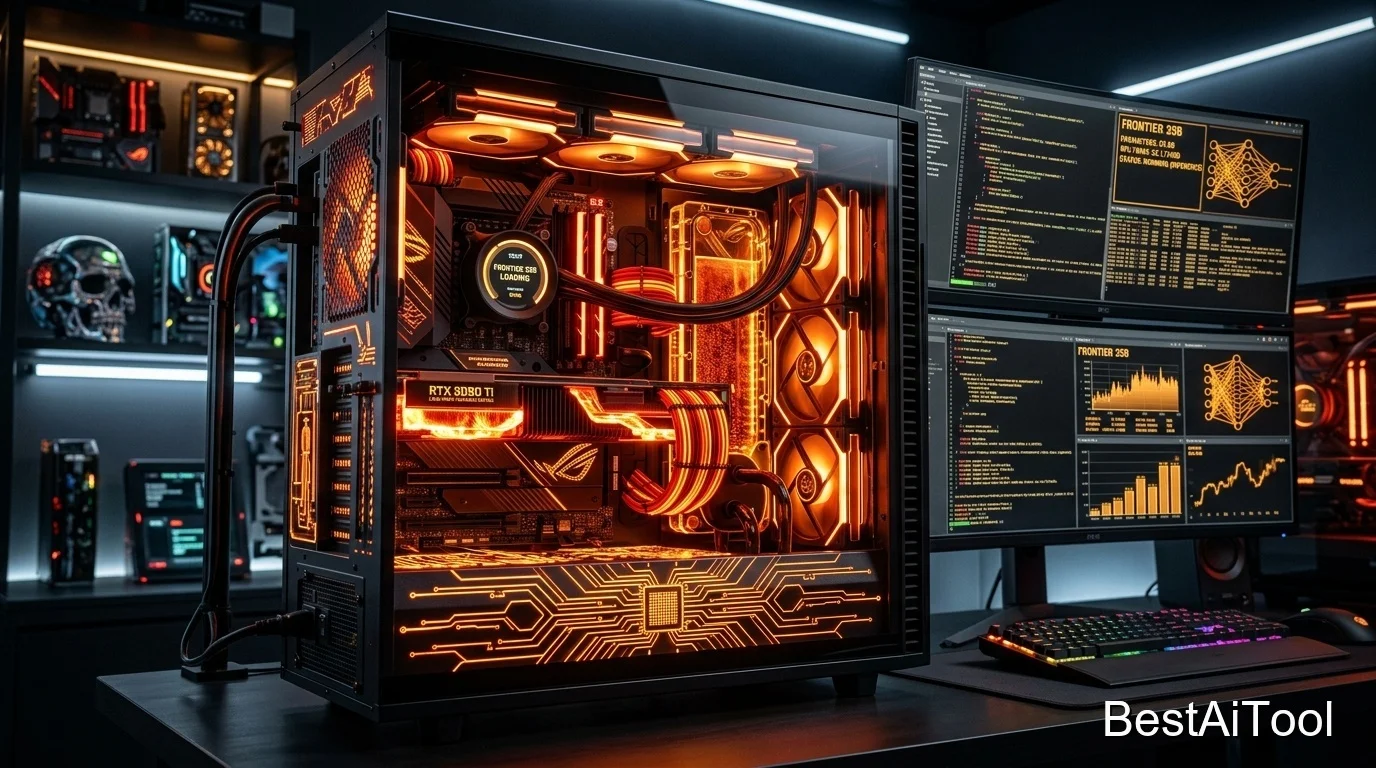
If you've got a 24GB graphics card — an RTX 3090, RTX 4090, or RTX 5090 — you're at the point where local AI stops being a "smaller version" of cloud AI and starts being genuinely close to it. This is the tier where 30B-class models fit comfortably and give you performance that's frontier-adjacent on real benchmarks, all running privately on your own desk.
Even at this level, setup takes about ten minutes and doesn't require any coding.
Is your computer in this tier?
| Spec | This Tier Requirement |
|---|---|
| GPU VRAM | 24GB (RTX 3090, RTX 4090, RTX 5090, or dual 12GB cards) |
| System RAM | 32–64GB recommended |
| Best Model Size | 27B–35B parameters (Q4/Q5), including mixture-of-experts (MoE) models |
| Realistic Use Cases | Near-frontier reasoning and coding, serious agent workflows, long documents, multi-model setups |
Step 1: Install Ollama
Windows:
Download and run the installer from ollama.com/download — click through with default settings.
Mac:
Download the macOS app from ollama.com/download, move it to Applications, open it, and approve the command-line tool install.
Linux:
Check your GPU is ready:
This should list your card and its 24GB of VRAM. Ollama detects and uses it automatically — no manual driver configuration needed as long as your NVIDIA drivers are reasonably current (driver 525+ for CUDA support).
Step 2: Understand mixture-of-experts (MoE) models — you'll see this term a lot at this tier
Some of the best models at this size (like Qwen3.6-35B-A3B or Gemma 4) are "mixture-of-experts" models. In plain terms: even though the model has 30+ billion parameters total, it only actively uses a small slice of them per response — which is why they run faster than you'd expect for their size, without needing a much bigger card. You don't need to configure anything differently to use them; just run them like any other model.
Step 3: Install and run models for your tier
Alibaba Qwen (best coding model at this tier)
Qwen 3.6 currently leads for local coding work — strong at multi-file reasoning, refactoring, and following detailed instructions.
Google Gemma (best overall single-GPU model)
Gemma 3 27B offers strong reasoning, long context, and multimodal (image) understanding on a single 24GB card. Note: Gemma's license isn't fully open-source (it's Google's own terms) — fine for personal projects and internal tools, just worth a read if you plan to build a commercial product on it.
Meta Llama (best long-context, general-purpose option)
Standard Llama 3.3 70B typically needs more than 24GB, but this more compressed (q3_K_M) version fits — expect a small quality trade-off for the extra headroom. If it runs slowly, drop down to Llama 3.1 8B or Qwen 3.6 35B instead for a smoother experience.
DeepSeek (serious reasoning power)
This distilled 32B version of DeepSeek's flagship reasoning model is one of the best "thinks before it answers" models you can run on a single consumer GPU — excellent for hard math, logic, and debugging tasks.
Mistral (clean, enterprise-friendly licensing)
A great pick if you care about clear, permissive commercial licensing alongside solid general performance.
Microsoft Phi (still useful here — for speed)
Phi-4 (14B) leaves tons of headroom on a 24GB card, meaning very fast responses if you'd rather prioritize speed over squeezing out maximum model size.
Step 4: Get more out of your extra VRAM
With 24GB, you can comfortably increase context length for handling long documents:
Mac/Linux (Terminal):
(use set instead of export on Windows Command Prompt). This lets you paste in much longer documents, codebases, or conversation histories before the model "forgets" earlier parts.
You can also run two smaller models side-by-side (e.g. an 8B model plus a 14B model) if you're building a workflow that uses different models for different jobs — just be mindful of your total VRAM budget.
Step 5: Build real workflows
At this tier, people commonly go beyond simple chat:
- Continue (VS Code extension) for a full local coding assistant.
- Open WebUI for a polished multi-model chat interface with document upload and RAG (retrieval-augmented generation) support.
- LangChain / LlamaIndex in Python, pointing at Ollama's local API (
http://localhost:11434/v1), if you want to build custom applications on top of your local models.
Tips for this tier
- Qwen 3.6 35B for coding, Gemma 3 27B for general reasoning — these two cover the vast majority of use cases well.
- Watch your context length setting — cranking it too high alongside a big model can push you over your VRAM budget and cause slowdowns from spilling into system RAM.
- A 70B model is technically possible here at heavy compression, but you'll get noticeably better results and speed from a well-chosen 27B–35B model instead. Save 70B for the next tier.
Visual Roadmap
Lost in the steps above? Here's the whole process at a glance:
Explore Prompt Library
Browse prompt packs and copy-ready prompts for coding, research, writing, and client work.
Explore Prompt Library →